Company virtual backgrounds: a guide for brand teams
Size, safe areas, the mirrored-preview confusion and keeping it current: a practical guide to company meeting backgrounds that hold up on real calls.

A company background is one of the first things brand teams make for video calls. It’s also one of the easiest to get wrong: a logo hidden behind someone’s head, text that reads backwards to the person using it, a file that’s out of date three months later and still on half the company’s laptops.
This guide covers what makes a background work on a real call, and how to keep one current once it’s out there.
Start with the right size
Meeting backgrounds should match the shape of a video call: 16:9. Zoom’s guidance is to crop to your camera’s aspect ratio, with 1280 × 720 or 1920 × 1080 for a 16:9 camera. 1920 × 1080 is the safe choice: it’s sharp on large screens and small enough to upload anywhere.
Keep the file light. PNG or JPEG works everywhere. Most apps have their own size limits, so check before sending a large file to the whole company.
Design for the person in front of it
A background isn’t a poster. Someone sits in the middle of it for the whole call.
- Keep the center quiet. Head and shoulders cover the middle third. Anything important there will be hidden most of the time.
- Put the brand at the edges. A small logo in an upper corner stays visible. A large one in the middle doesn’t.
- Leave room for a nametag. Tags usually sit in a bottom corner. Avoid busy detail there so a name stays readable.
- Go easy on contrast. Background segmentation is good, not perfect. A calm, slightly blurred scene hides the edges around hair and shoulders; a sharp, high-contrast pattern shows them.
- Avoid fine text. Small type turns to noise after video compression. If text is needed, make it large and short.
Why your logo looks backwards
The most common complaint about a new background: “the text is backwards.” It usually isn’t. Many meeting apps mirror your self-view, so your preview behaves like a mirror. Zoom, for example, has a Mirror my video setting that only changes how you see yourself. Everyone else on the call sees the background the right way round.
Tell people this when you send the file, and ask them not to flip the image to “fix” it. A flipped file reads backwards to everyone except them.
The hard part: keeping it current
Sending a background is easy. Getting it off people’s laptops is not. Every rebrand, campaign and holiday season leaves a trail of old files, and there’s no way to see who’s using which one.
That’s the real problem to solve, and it’s an operations problem, not a design one.
Run backgrounds from one place
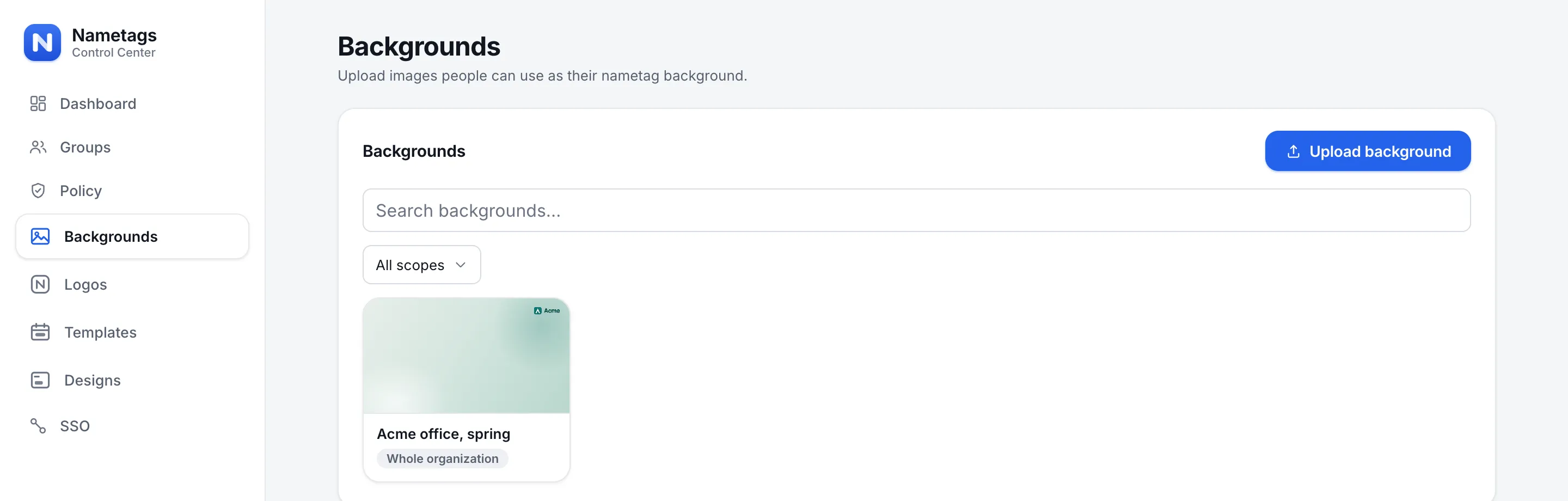
With Nametags, backgrounds live in your organization’s library in Control Center, not in an email attachment. You upload them once, and the library recommends the same 16:9, 1920 × 1080 shape.
A background reaches people through a template: a logo, a background, or both, for a set period, for the whole organization or one group. It starts on its own and ends on its own. The app checks for a running background every 15 minutes, so everyone changes over within a quarter of an hour of the start or end time, and when a template ends, everyone goes back to what they had. Anyone who has picked their own background in the app keeps theirs, and the app tells people when their organization is running one.
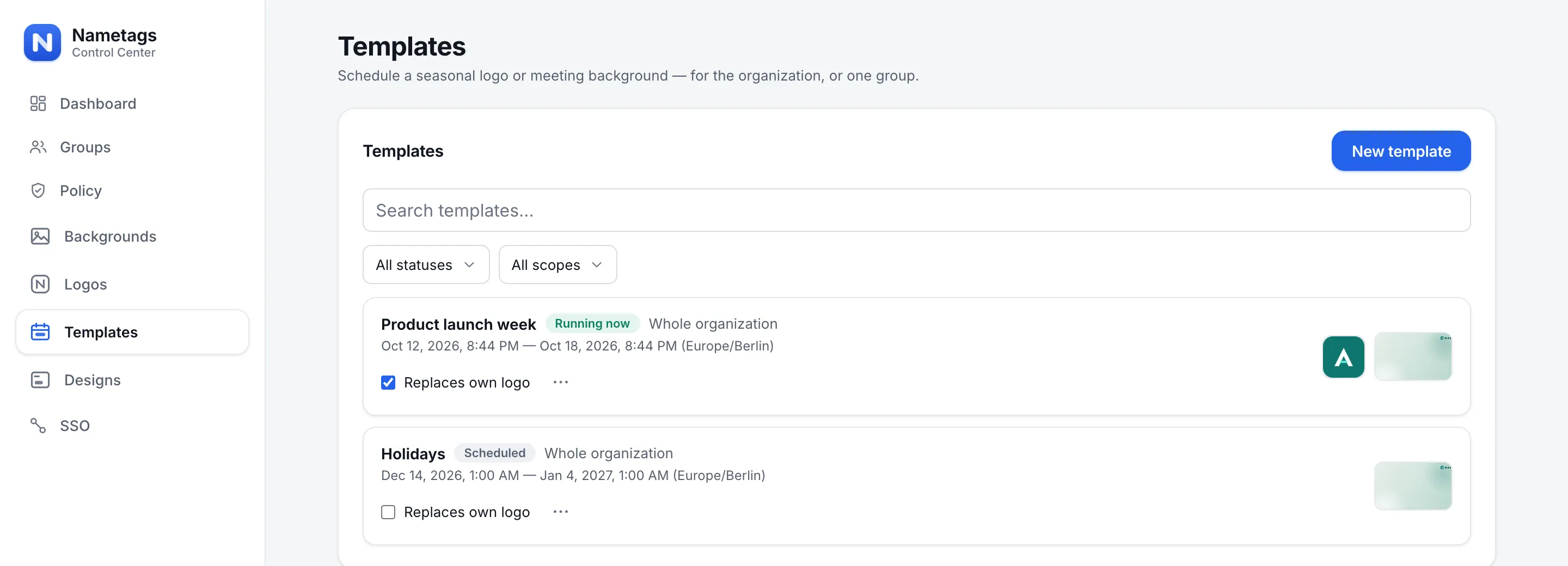
That turns the yearly scramble into a schedule: the launch background for launch week, the holiday one for December, and nothing to take down afterwards. We walk through a full December plan in Holiday logos on every call.
A checklist for your next background
- 16:9, 1920 × 1080, PNG or JPEG.
- Quiet center, brand at the edges, room for a nametag in a bottom corner.
- No fine text; large and short if you need any.
- Tell people about the mirrored preview before they ask.
- Decide how it gets updated and removed before you send it.
Want to see how a background and a nametag look together before you roll anything out? The free Nametag Builder lets you drop in a backdrop and design a tag over it, with nothing to install. And if you’re weighing a background against a nametag, read Nametags vs branded virtual backgrounds.


