The first ten seconds of a sales call
Before anyone speaks, your prospect has already seen a grid of faces and display names. Here's what they're reading, and how to make it say the right thing.
'%3e%3cg%20transform='translate(-24%200)'%3e%3cpath%20d='M96%2056h108M96%20244h108'/%3e%3cpath%20d='M108%2056c0%2046%2036%2062%2036%2094s-36%2048-36%2094h84c0-46-36-62-36-94s36-48%2036-94z'%20fill='%23fff'/%3e%3cpath%20d='M128%20214c8-14%2036-14%2044%200l6%2018h-56z'%20fill='%230a0f1c'%20stroke-width='4'/%3e%3cpath%20d='M136%20100h28l-14%2020z'%20fill='%230a0f1c'%20stroke-width='4'/%3e%3cpath%20d='M150%20150v40'%20stroke-width='4'%20stroke-dasharray='2%209'/%3e%3cpath%20d='M204%2070c24%204%2034%2022%2034%2044'/%3e%3crect%20x='206'%20y='114'%20width='64'%20height='42'%20rx='7'%20fill='%23fff'%20transform='rotate(10%20238%20135)'/%3e%3ccircle%20cx='222'%20cy='126'%20r='4'%20fill='%230a0f1c'%20stroke-width='3'/%3e%3c/g%3e%3c/g%3e%3c/svg%3e)
A sales call starts before anyone says hello. The prospect joins, the grid fills in, and for a few seconds everyone looks at everyone else. In that moment they’re working out who these people are, which one is in charge, and whether this company looks like one they want to buy from.
Most of the time, the screen gives them very little to go on.
What the prospect actually sees
Picture a typical call late in a deal. On your side: the account executive, a solutions engineer, maybe a manager or someone from customer success. On theirs: the buyer, someone from IT, possibly finance.
What the buyer sees of your team is a row of faces and a label in each tile. That label is whatever each person’s meeting app happens to use: their full name, a first name, a nickname, an email address, sometimes the name of their laptop. Job titles almost never appear. The company name rarely does either. And on a shared screen, even the labels shrink or vanish.

So the buyer has to work it out. Who is the one who’ll own the account? Is the person who just joined from your company or theirs? The call usually answers those questions eventually, through a round of introductions, but it spends the opening minutes doing it.
Why the opening matters more on multi-threaded deals
When one rep meets one buyer, the confusion is small. The bigger the call, the bigger the cost:
- More people means longer introductions, and each one adds a name the others have to remember.
- Handoffs blur. When the deal moves from the development rep to the account executive to the solutions engineer, the buyer meets someone new each time and has to place them again.
- Your side looks less like a team. Five people with five different-looking tiles read as five individuals. Five people with the same clean name, title and logo read as one company.
None of this loses a deal on its own. But the opening sets the tone, and a call that starts with people squinting at tiles has given away its first impression.
What a good first ten seconds looks like
Whatever tools you use, aim for the screen to answer three questions before anyone speaks: who is this, what do they do, and which company are they with?
Here’s what that takes on your side.
- A consistent display name. Agree on one format for the whole team, such as First Last, and set it in each meeting app’s profile rather than renaming yourself call by call.
- The role, visible. “Solutions Engineer” tells the buyer why this person is here. Without it, they find out when that person starts talking.
- The company, visible. Especially on calls where both companies have several people, so nobody has to guess which side someone is on.
- Clean video. A camera at eye level, light from the front, and a background that isn’t doing anything interesting.
- An opening line that uses the screen. Once names and roles are visible, the host can skip the round of introductions and say why everyone is there.
Points 2 and 3 are where the built-in options run out. Meeting apps show a name, and only a name. We covered the workarounds, and where they fall short, in how to show your name and title on Zoom, Teams, Google Meet and Webex.
Put the answers on the video itself
The approach that answers all three questions, in every meeting app, is to add the name, title and company to the video itself, like the caption under a speaker on the news.
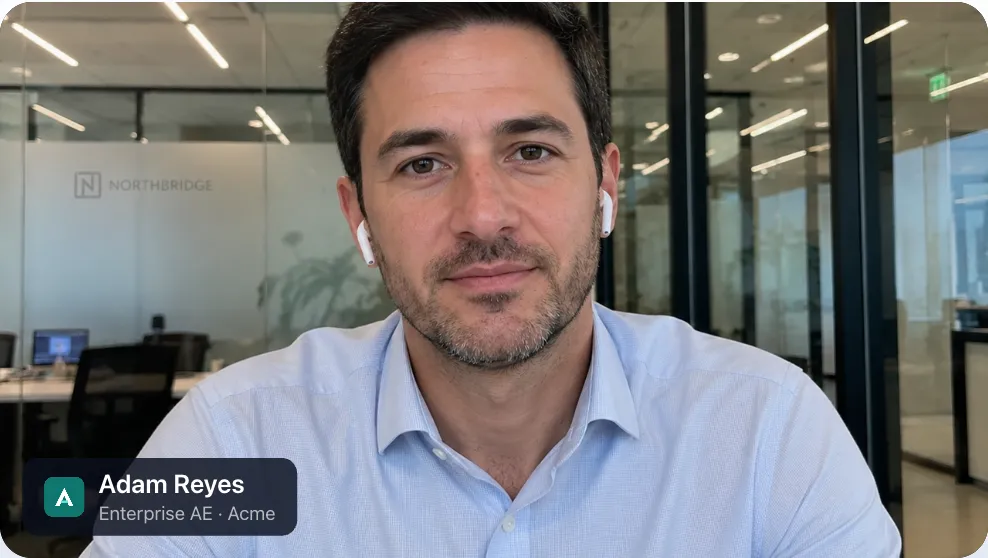
That’s what Nametags does. The desktop app adds each person’s tag to their camera on their own computer, so it shows up the same way in Zoom, Teams, Google Meet, Webex and anything else that lets you pick a camera. If your team lives in Zoom, the Zoom app does the same inside Zoom.
For a sales team, the parts that matter most are the ones people don’t have to think about:
- The company name and logo are set once, centrally, and locked so every rep shows the same brand.
- Titles can come straight from your directory through SSO field mapping, so when someone is promoted, their tag follows.
- Everyone appears the same way, from the first call with a development rep to the last call before signature.
Try it on your next call
You can see the difference in a minute. Put your own name and title on a call with the Zoom app or the desktop app, and look at your tile the way a prospect would. If you’re a sales leader thinking about the whole team, our 30-day pilot plan is a good place to start.
'%3e%3cpath%20d='M104%20196h92l-12%2056h-68z'%20fill='%23fff'/%3e%3cpath%20d='M96%20184h108v14H96z'%20fill='%23fff'/%3e%3cpath%20d='M150%20184c-2-30%202-58%200-96'/%3e%3cpath%20d='M150%20150c-30%202-44-14-46-34%2022-2%2042%2012%2046%2034z'%20fill='%23fff'/%3e%3cpath%20d='M151%20118c26%200%2040-16%2042-36-22%200-38%2014-42%2036z'%20fill='%23fff'/%3e%3cpath%20d='M150%2088c-6-10-4-22%200-30%206%208%206%2020%200%2030z'%20fill='%230a0f1c'/%3e%3c/g%3e%3c/svg%3e)
'%3e%3crect%20x='62'%20y='92'%20width='176'%20height='116'%20rx='8'%20fill='%23fff'/%3e%3cpath%20d='M40%20216h220l-14%2018H54z'%20fill='%23fff'/%3e%3cpath%20d='M174%20150a24%2024%200%201%201-8-18'%20/%3e%3cpath%20d='M166%20116l1%2017-17%201'%20/%3e%3cpath%20d='M206%2062c-2-16%2022-20%2026-6%204-14%2030-10%2028%206%2012%200%2014%2018%200%2018h-52c-14%200-14-18-2-18z'%20stroke-width='5'%20stroke-dasharray='2%2010'/%3e%3c/g%3e%3c/svg%3e)
'%3e%3crect%20x='46'%20y='72'%20width='208'%20height='156'%20rx='14'%20fill='%23fff'/%3e%3cpath%20d='M46%20122V86a14%2014%200%200%201%2014-14h180a14%2014%200%200%201%2014%2014v36z'%20fill='%230a0f1c'/%3e%3cpath%20d='M112%2097h76'%20stroke='%23fff'%20stroke-width='7'/%3e%3cpath%20d='M78%20186c8-26%2016-32%2018-20s-10%2030-4%2028%2014-34%2022-30-6%2026%202%2024%2012-20%2020-18%200%2016%208%2014%2018-14%2034-12'%20stroke-width='6'/%3e%3cpath%20d='M78%20206h144'%20stroke-width='4'/%3e%3crect%20x='46'%20y='72'%20width='208'%20height='156'%20rx='14'/%3e%3c/g%3e%3c/svg%3e)