How to pilot Nametags with one team in 30 days
Pick the team that lives on camera, set a policy, get the app on their machines and measure adoption. A week-by-week plan for a pilot you can expand.
'%3e%3cpath%20d='M104%20196h92l-12%2056h-68z'%20fill='%23fff'/%3e%3cpath%20d='M96%20184h108v14H96z'%20fill='%23fff'/%3e%3cpath%20d='M150%20184c-2-30%202-58%200-96'/%3e%3cpath%20d='M150%20150c-30%202-44-14-46-34%2022-2%2042%2012%2046%2034z'%20fill='%23fff'/%3e%3cpath%20d='M151%20118c26%200%2040-16%2042-36-22%200-38%2014-42%2036z'%20fill='%23fff'/%3e%3cpath%20d='M150%2088c-6-10-4-22%200-30%206%208%206%2020%200%2030z'%20fill='%230a0f1c'/%3e%3c/g%3e%3c/svg%3e)
The best Nametags rollouts don’t start with the whole company. They start with one team that spends its day on camera, run for a month, and grow from there with numbers to point at.
This is the plan we suggest for that first month. It assumes one person, the champion, owns the pilot, with help from someone in IT and someone in brand.
Before you start: pick the team
Choose the team where an on-brand first impression matters most and where calls happen every day. It’s usually one of:
- Sales, especially account executives and solutions engineers on multi-party calls.
- Customer success, where the customer should never have to ask who just joined.
- Recruiting, where candidates meet a panel of strangers.
Aim for 15 to 50 people: enough to see a pattern, few enough that you can talk to all of them. A team whose leader wants it beats a bigger team whose leader is lukewarm.
Write down what success looks like before you begin. For example: 80% of the team active each week by day 30, and the team lead wants to keep it.
Week 1: set up the organization
Sign in to the admin console. The Control Center is where you’ll set everything up. Nametags support creates your first admins during onboarding. See Getting into the admin console.
Make a group for the pilot. Everyone who signs in with your company’s email domain joins your organization automatically. Create a group for the pilot team in People and groups, so you can give them their own rules without affecting anyone else.
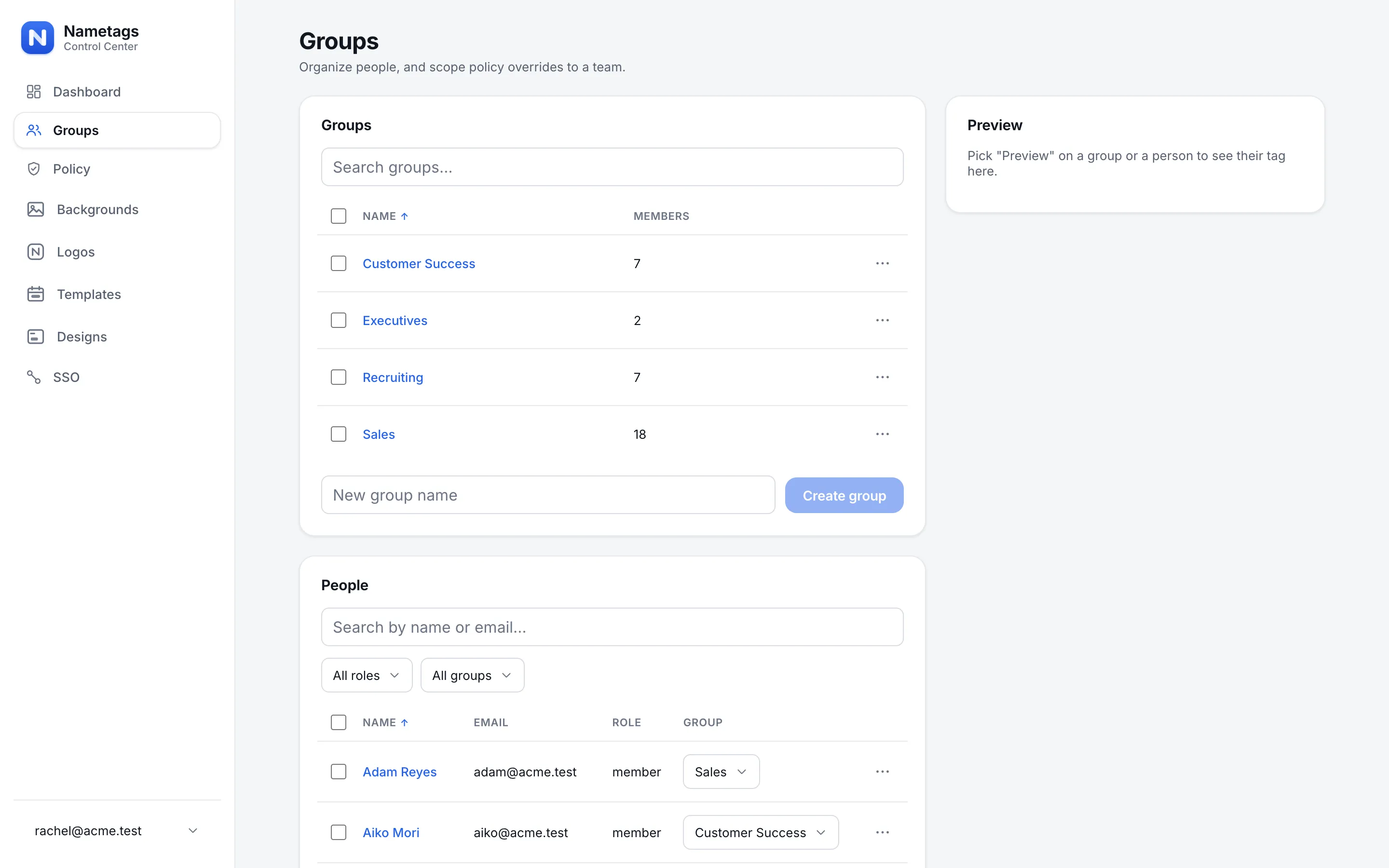
Upload the brand. Add your approved logo to Backgrounds and Logos. Use a square image with a transparent background. If you want a branded meeting background too, use a 16:9 image; 1920 × 1080 works well.
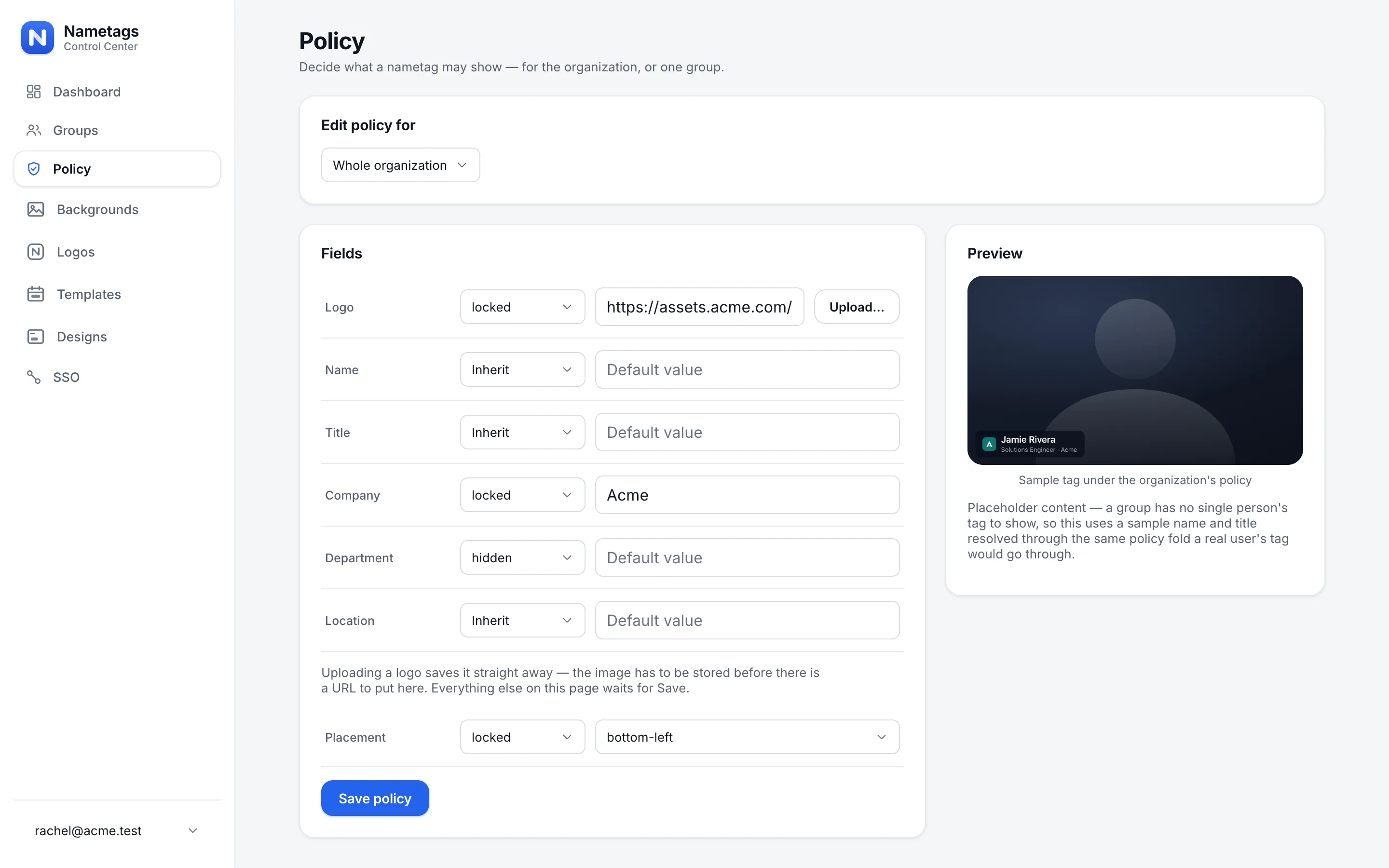
Decide the policy. Policy sets each field to editable, locked or hidden. A sensible starting point:
| Field | Rule | Why |
|---|---|---|
| Logo | locked, with your logo as the default | The point of the pilot is a consistent brand. |
| Company | locked, with your company name | Nobody needs to type it. |
| Name | editable | People know how their own name should read. |
| Title | editable | Unless you map it from your directory, below. |
| Department | hidden, or locked per group | Useful for big organizations; noise for a small pilot. |
| Placement | locked to one corner | Consistent tags look deliberate. |
Use the Preview as you go to see exactly what the team will see.
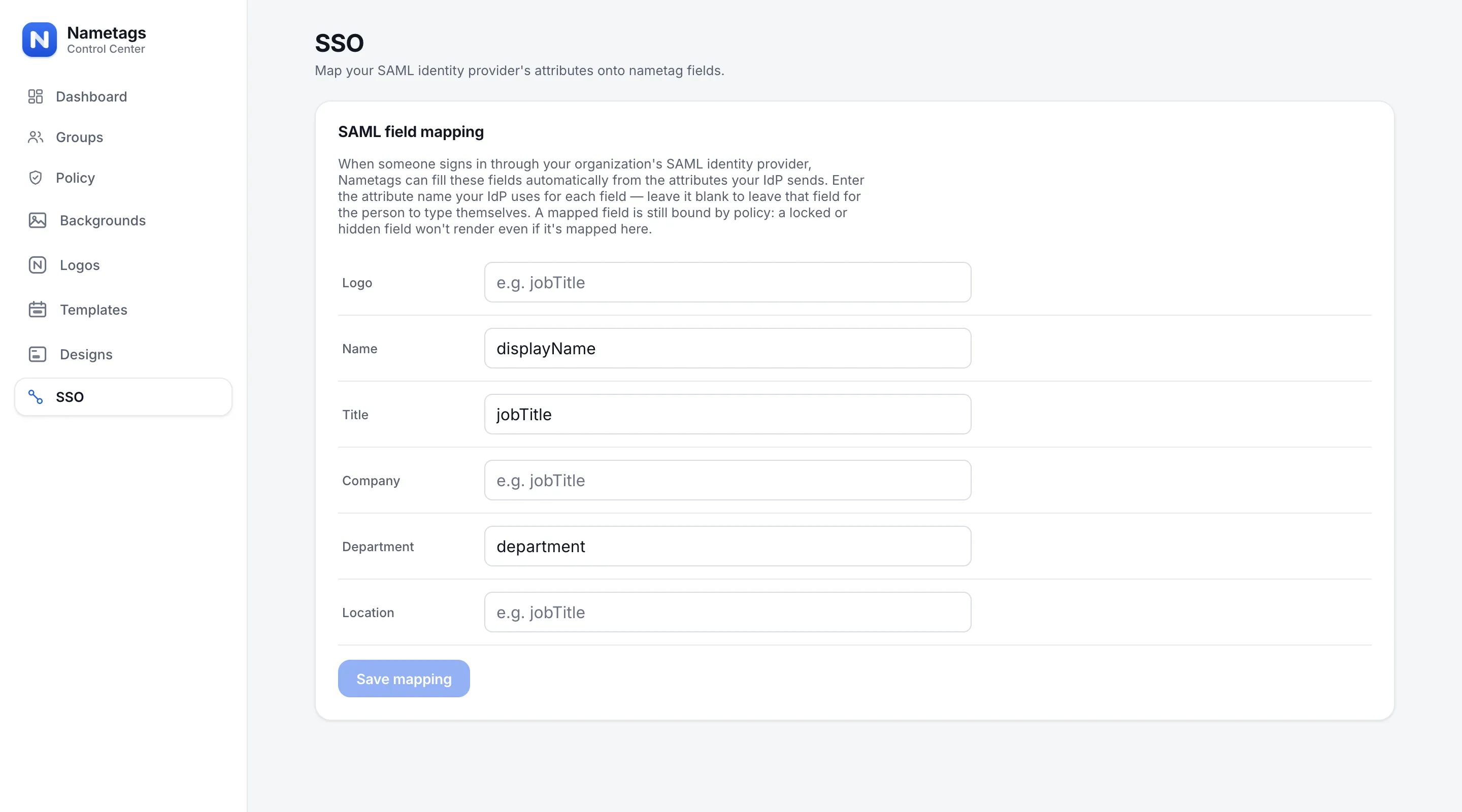
Optional: map titles from your directory. If people sign in with SAML single sign-on, SSO field mapping fills in Name, Title, Company and Department from your identity provider at every sign-in. Nobody has to type a title, and tags follow role changes.
Week 2: get it onto the team’s machines
There are two routes, and the team can use either.
- The desktop app works in every meeting app, because it shows up as a camera called Nametags. For a handful of people, send them the download page and the quickstart. For managed machines, IT can deploy it with your device management tool and pre-approve the macOS camera extension, so people skip a step.
- The Zoom app runs inside Zoom with nothing to install. It’s the fastest start if the team lives in Zoom. See Nametags in Zoom.
Run a 15-minute kickoff on a call. Have everyone install it while you’re together, switch their camera to Nametags, and see each other’s tags appear. It’s the quickest way to get through setup and the moment the pilot starts to feel real.
Point anyone who gets stuck to Troubleshooting. The most common fix: if Nametags isn’t in the camera list, quit the meeting app and open it again.
Week 3: watch adoption, and fix the gaps
Open the dashboard and look at three things.
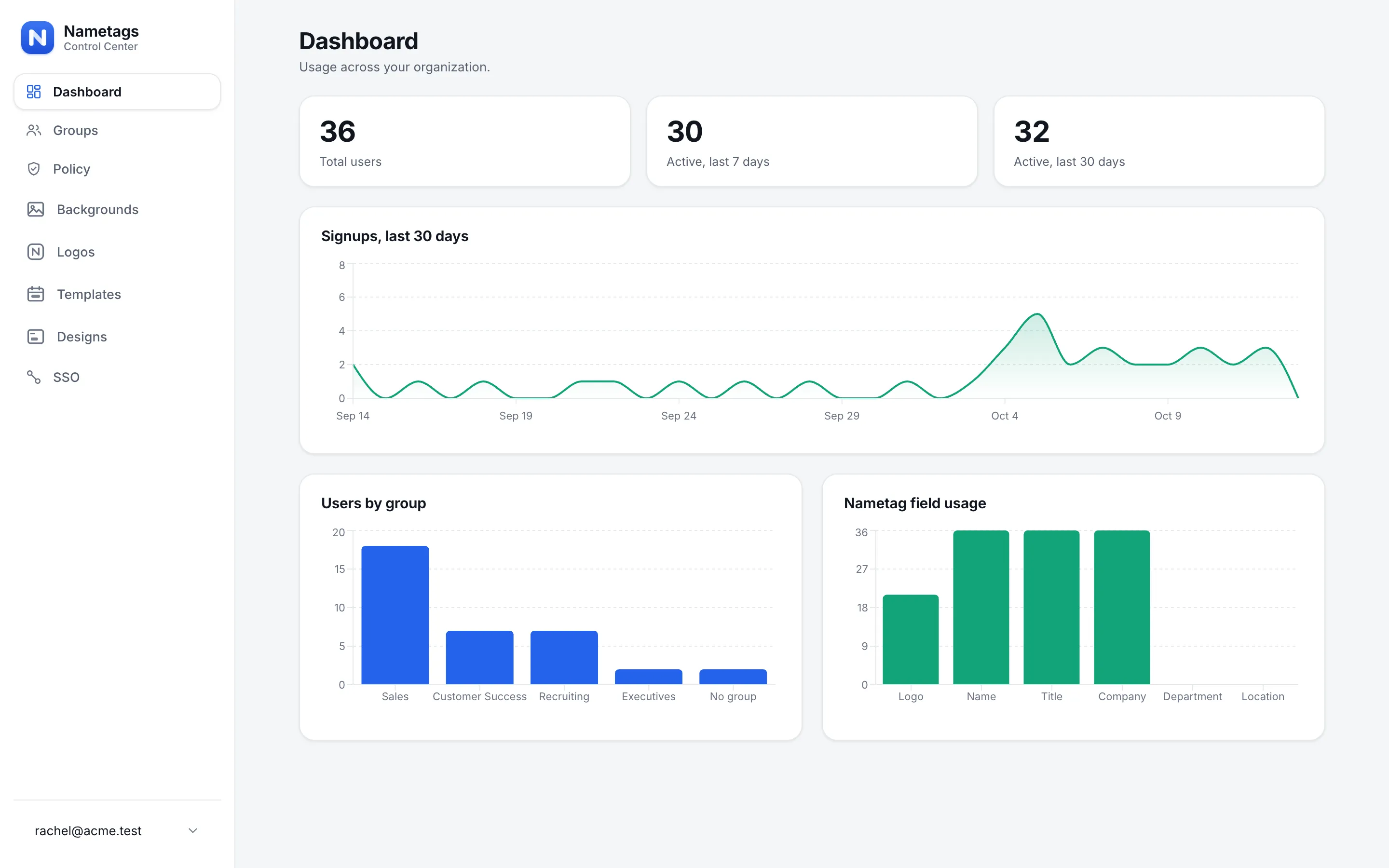
- Active, last 7 days against the size of the team. Using it means the app actually talked to Nametags, not just that someone signed in once.
- Users by group, to check everyone in the pilot has signed in and landed in the right group.
- Nametag field usage. If only half the team has filled in a title, either map it from your directory or set a default in policy.
Ask the people who haven’t switched over why not, one at a time. It’s almost always a one-minute fix: the wrong camera selected in one app, or the app not opened since a restart.
Week 4: collect the evidence
By now the team has a few weeks of calls behind them. Gather:
- The adoption numbers from the dashboard.
- Before and after screenshots of a few customer calls, with permission. Side by side, they make the case faster than any slide.
- Three quotes from the team and, if you can get them, from a customer or candidate who noticed.
- The questions IT and security asked, and the answers. The next team’s rollout will ask the same ones.
Then decide with the team lead: keep it, change it, or stop. If you’re keeping it, pick the next team.
After the pilot
Expanding is mostly repetition: a new group, its own policy if it needs one, and the same install session. A few things are worth doing once you go beyond one team:
- Give stricter groups stricter rules. A group’s policy can only tighten the organization’s, never loosen it. Executives with fully locked titles is a common second group.
- Schedule your first template. A launch week or the holidays is a good first use of templates, which start and end on their own.
- Deploy through device management rather than one install session at a time.
If you need sign-off to go wider, Convince your boss has the ROI, the security answers and a pitch you can send as it is. And if you’d like us to help plan the pilot, book a demo. We’ll build your template live, using your brand.
'%3e%3crect%20x='62'%20y='92'%20width='176'%20height='116'%20rx='8'%20fill='%23fff'/%3e%3cpath%20d='M40%20216h220l-14%2018H54z'%20fill='%23fff'/%3e%3cpath%20d='M174%20150a24%2024%200%201%201-8-18'%20/%3e%3cpath%20d='M166%20116l1%2017-17%201'%20/%3e%3cpath%20d='M206%2062c-2-16%2022-20%2026-6%204-14%2030-10%2028%206%2012%200%2014%2018%200%2018h-52c-14%200-14-18-2-18z'%20stroke-width='5'%20stroke-dasharray='2%2010'/%3e%3c/g%3e%3c/svg%3e)
'%3e%3crect%20x='46'%20y='72'%20width='208'%20height='156'%20rx='14'%20fill='%23fff'/%3e%3cpath%20d='M46%20122V86a14%2014%200%200%201%2014-14h180a14%2014%200%200%201%2014%2014v36z'%20fill='%230a0f1c'/%3e%3cpath%20d='M112%2097h76'%20stroke='%23fff'%20stroke-width='7'/%3e%3cpath%20d='M78%20186c8-26%2016-32%2018-20s-10%2030-4%2028%2014-34%2022-30-6%2026%202%2024%2012-20%2020-18%200%2016%208%2014%2018-14%2034-12'%20stroke-width='6'/%3e%3cpath%20d='M78%20206h144'%20stroke-width='4'/%3e%3crect%20x='46'%20y='72'%20width='208'%20height='156'%20rx='14'/%3e%3c/g%3e%3c/svg%3e)
'%3e%3crect%20x='42'%20y='58'%20width='216'%20height='148'%20rx='10'%20fill='%23fff'/%3e%3ccircle%20cx='178'%20cy='112'%20r='24'/%3e%3cpath%20d='M132%20206c4-36%2022-52%2046-52s42%2016%2046%2052'/%3e%3crect%20x='58'%20y='172'%20width='58'%20height='20'%20rx='5'%20stroke-width='5'%20stroke-dasharray='2%2011'%20/%3e%3cpath%20d='M150%20206v34M112%20246h76'/%3e%3c/g%3e%3c/svg%3e)