Google Meet name tags: what Meet shows and how to add more
Google Meet shows the name on your Google Account and nothing else. Here's how to change it, why you sometimes can't, and how to put your title on your video.

Google Meet keeps things simple: your tile shows your name. No title, no company, no way to add them in Meet itself. That’s fine for a quick internal call. On a meeting with a customer or a candidate, it leaves people guessing who you are and why you’re there.
This guide covers where Meet gets your name, how to change it, and how to show your title and company on your video.
Where Meet gets your name
Meet doesn’t have a display name of its own. The name on your tile is the name on your Google Account. Change it there, and it changes in Meet, and in Gmail, Drive and every other Google product you use with that account.
Change it on a personal account
According to Google’s guide:
- Go to your Google Account and open Personal info.
- Click Name, then Edit.
- Update your name and click Save.
Google notes that changes can take a while to appear across all its products.
On a work or school account
If your company uses Google Workspace, your name usually comes from your organization’s directory, and your administrator may have turned off editing it. If you can’t change it, ask your IT team.
Joining as a guest
People who join without signing in to a Google Account type a name before asking to join. That name is only for that meeting.
What Meet can’t show
Even with your name right, Meet shows nothing else about you on the video. Your role, your team and your company aren’t there. On a call with people from several companies, there’s no way to tell at a glance which side someone is on, or what they’re responsible for. The usual result is a round of introductions at the start of every call, which we put a number on in The introduction tax.
Add your title and company to your video
Since Meet won’t show more than a name, the reliable fix is to put the rest on the video itself, like a caption in the corner of your camera.

The Nametags desktop app does this. It reads your real camera, adds your tag on your computer, and offers the result as a camera called Nametags. Meet runs in your browser, so it uses whatever camera you choose there.
Set it up in Meet
- Install Nametags from the download page and follow the quickstart.
- Fill in your tag on the You tab: name, role, company, and a logo if you like.
- Pick the Nametags camera in Meet. Before you join, on the preview screen, use the camera menu under your preview, or open More options, then Settings, then Video, and choose Nametags. Google’s video & audio guide covers both routes.
Don’t see Nametags in the list? Reload the Meet tab. Browsers only look for cameras when the page loads.
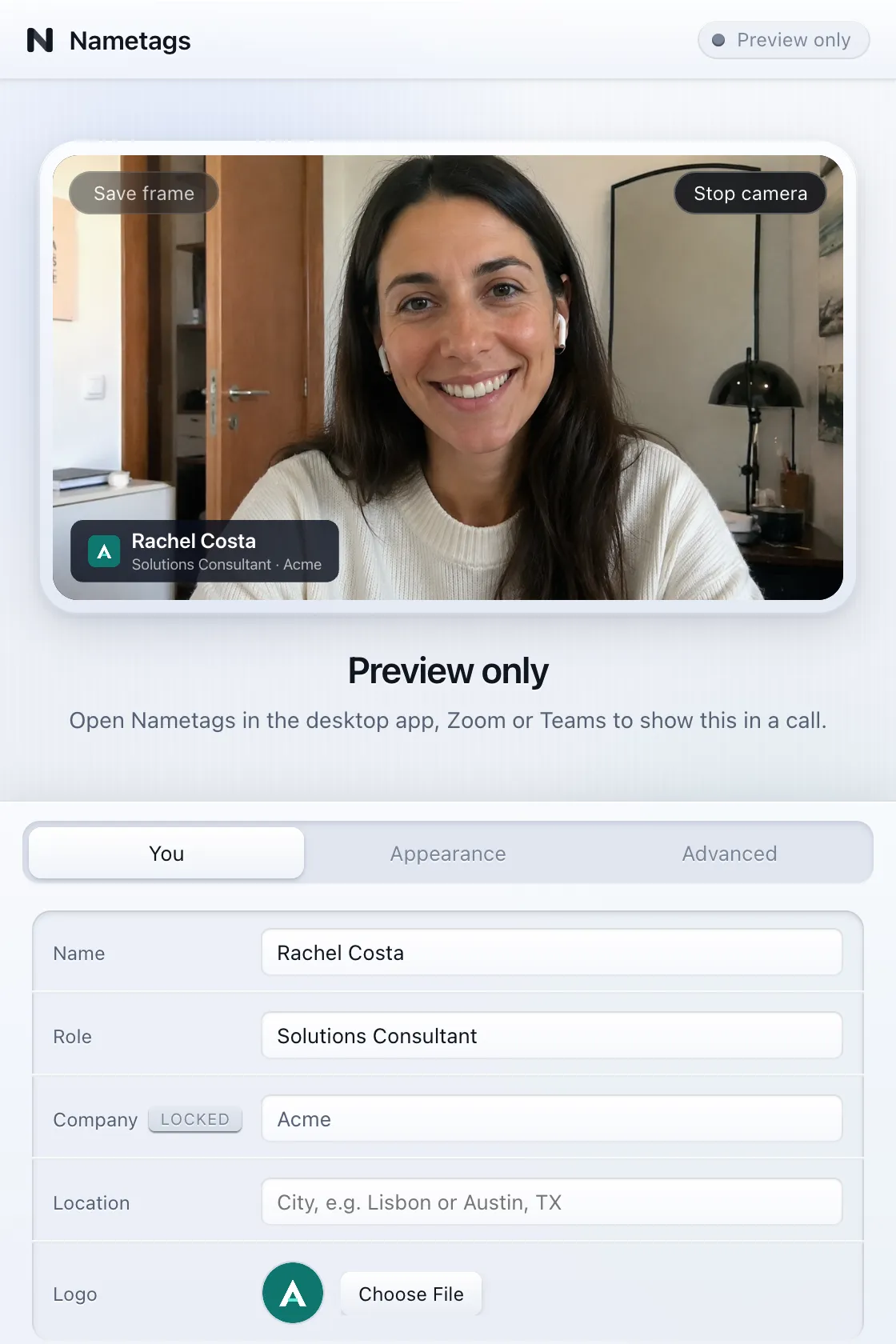
Meet remembers your choice, so you only do this once. The steps for other apps are in Choosing the Nametags camera.
For Google Workspace teams
If your whole company is on Google Workspace, you probably want everyone’s tag to look the same: the company name and logo fixed, titles that match the directory. In Control Center, policy locks the fields that shouldn’t change, and SSO field mapping can fill in titles from your identity provider when people sign in.
For the same steps in Zoom, Teams and Webex, see how to show your name and title on every meeting app.


